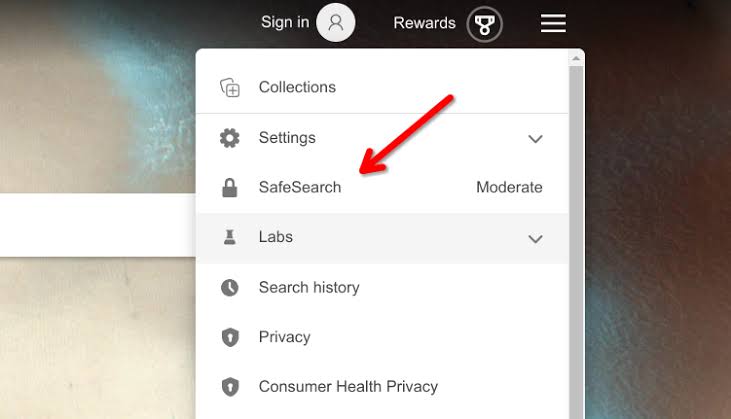
How to Set Safe Search on Google, YouTube, and Bing — A Complete Guide
Last updated: August 10, 2026
- Google SafeSearch has 3 levels: Filter (strictest), Blur (obscures explicit images), and Off (default for adults).
- YouTube’s content filter is called Restricted Mode — a separate setting from Google SafeSearch that must be enabled independently.
- Bing SafeSearch has 3 levels: Strict, Moderate (default), and Off.
- An unlocked browser-level filter can be disabled by any user who knows where the toggle is.
- Google Family Link is free and enforces SafeSearch on Android devices and Chromebooks supervised through a parent account.
- Microsoft Family Safety is free with a Microsoft account and locks Bing SafeSearch across Windows, Xbox, and Edge.
- Cloudflare for Families uses IPs 1.1.1.3 and 1.0.0.3; OpenDNS FamilyShield uses 208.67.222.123 and 208.67.220.123.
- YouTube Kids is designed for children under 13 and applies a more aggressive filter than Restricted Mode.
An unlocked filter is not a filter — it’s a suggestion. Setting safe search on Google, YouTube, and Bing takes under five minutes per platform, but most guides stop there and skip the part that actually matters: locking it so no one can quietly flip it back off. The steps differ based on whether you’re signed in, which device you’re using, and how durable you need that setting to be.
That distinction — set vs. locked — is where most setups quietly fail.
What “Safe Search” Actually Does (and Doesn’t Do)
Safe search is a content filter, not a content blocker. With Google and Bing, it hides explicit images, videos, and some web results from search results pages. With YouTube, Restricted Mode — Google’s equivalent for video — suppresses videos flagged for mature themes, certain news stories, and content with strong language.
What it does not do: block explicit websites you navigate to directly, stop a determined teenager who knows where the toggle is, or catch every piece of mature content. Both Google and Bing acknowledge their filters aren’t perfect and will occasionally miss content or over-filter legitimate results.
Here’s the honest trade-off: strict filtering catches more explicit content but also clips some legitimate medical, educational, and news material. A search for “breast cancer screening” can behave differently with safe search on. For younger children, that’s an acceptable cost. Adults who just want fewer surprises in image searches may find the strict setting more irritating than useful — depending on how often you run image searches.
Decide before you start whether you need a hard lock or just a default preference. Quick check: Are you setting this for someone who will use the device unsupervised? Lock it. Don’t just enable it. Skip straight to the locking sections below.
How to Set Safe Search on Google — and Lock It
The setting lives in two different places depending on whether you’re signed into a Google account.
Signed in:
- Go to google.com/preferences — this opens Search Settings directly.
- Find the “SafeSearch” section near the top of the page.
- Select Filter (the strictest level, which removes explicit images and text results) or Blur (which blurs explicit images but still shows them). Off is the default for adults.
- Scroll to the bottom and click Save.
- Confirm the setting has saved by running a test image search — Google will show a small “SafeSearch is on” badge near the top of results when the filter is active.
Not signed in:
The setting saves as a cookie on that browser. Clear the cookies, or switch to Firefox, and it vanishes. That’s the single biggest gap most parents hit — they configure it in Chrome, the child opens a different browser entirely, and the filter does nothing.
Locking the filter at the account level is the more durable approach. Google’s lock option requires either a paid Google Workspace for Education plan or Google Family Link — which is free, works on Android devices and Chromebooks supervised through a parent account, and lets you permanently enforce SafeSearch through the parental controls dashboard at families.google/familylink/. With a standard personal Google account, there is no free lock option; a DNS-level filter (see the edge cases section) is more reliable than the Google toggle alone for shared Windows or Mac computers.
Quick check: Did you save the setting and see the “SafeSearch is on” badge? Open a new tab and confirm it’s still there. Gone already? You’re not signed in and the cookie didn’t persist.
How to Set Restricted Mode on YouTube
YouTube calls its filter “Restricted Mode” rather than safe search — and unlike the Google SafeSearch you just configured, this setting must be enabled separately even on the same Google account.
- Sign in to your Google account on YouTube.
- Click your profile picture in the top-right corner.
- Scroll to the bottom of the dropdown menu and find Restricted Mode.
- Click the toggle to turn it on. The page will reload and show a blue banner confirming Restricted Mode is active.
- To verify: search for something that would normally surface mature content. Heavily restricted results indicate the filter is working.
The catch with Restricted Mode: It is per-browser, per-account, and per-device. Turning it on for your laptop does nothing on a tablet where someone is signed into a different account — or no account at all. Within the YouTube app on mobile, there’s a separate Restricted Mode toggle buried in app settings under Account → Restricted Mode.
Because of that per-device limitation, locking matters as much as enabling. Through Family Link, you can lock Restricted Mode from the parent dashboard for any child on a supervised Google account. School-managed Chromebooks are controlled at the domain level through Google Admin Console — that’s outside a parent’s reach, but worth knowing if you’re expecting a school device to carry filtering home.
YouTube Kids is a separate app for younger children — Google says it’s designed for children under 13 — with a more aggressive filter and no way to accidentally disable it. For anyone under 10, honestly, point families there rather than Restricted Mode. It’s a different product built for a different level of supervision.
Quick check: Is the blue Restricted Mode banner visible at the bottom of YouTube? Not there? It didn’t save. Trying to lock it? You need Family Link or a managed Google Workspace account.
How to Set Safe Search on Bing
Bing’s SafeSearch offers three levels: Strict, Moderate, and Off. Moderate — the default — filters explicit images and video but allows some explicit text results. Strict removes both.
- Go to bing.com/account/general — this opens Bing’s Settings page under SafeSearch.
- Select Strict, Moderate, or Off under the SafeSearch heading.
- Click Save at the bottom of the page.
- Test with an image search to confirm the filter is active.
- Signed into a Microsoft account? The setting will persist across devices where you log in with the same credentials.
Like Google, Bing’s toggle is easy to change by anyone who knows where to look. Microsoft’s parental control option — Microsoft Family Safety, at account.microsoft.com/family — lets a family organizer set and lock SafeSearch for child accounts managed through the family group. Free with any Microsoft account, it covers Windows, Xbox, and Edge on any platform where the child account is active.
Quick check: Managing a child’s Microsoft account on a Windows device? Microsoft Family Safety integrates at the OS level and is probably your cleanest option — more reliable, in practice, than browser-level settings alone.
Alternatives to Platform Safe Search — and How They Compare
| Situation | Best Path | Why Other Options Fall Short |
|---|---|---|
| Child uses Android phone or Chromebook | Google Family Link (free) | Browser-level settings don’t survive cookie clears or browser switching |
| Child uses Windows PC with Microsoft account | Microsoft Family Safety (free) | Locks Bing SafeSearch at the account level across Edge and Windows |
| Shared family computer, multiple browsers | DNS-level filter (e.g. Cloudflare for Families or OpenDNS) | Browser settings only affect one browser; DNS filtering covers every app |
| School-managed Chromebook | Controlled by school’s Google Admin Console | Parents cannot lock settings on a device enrolled in a school domain |
| Personal account, occasional preference | Toggle in Google/Bing settings, no lock needed | Full parental control setup is unnecessary overhead for a single adult |
Common Mistakes When Setting Safe Search — and How to Avoid Them
Even after enabling the right setting on each platform, a handful of scenarios cause filters to fail silently. These are the situations where standard “just turn on safe search” guidance breaks down.
1. The child uses multiple browsers or profiles.
Configuring SafeSearch in Chrome does nothing in Firefox, Safari, or an incognito window. The fix isn’t a browser setting — it’s a DNS filter applied at the router level, which covers every device on the network regardless of browser.
2. The device is shared between an adult and a child.
One computer, one browser profile — locking SafeSearch to strict affects your own searches too. The right fix is separate browser profiles or separate operating system accounts. Each account then carries its own settings.
3. A child is signed out of all accounts.
Safe search settings tied to a Google or Microsoft account do nothing when no one is logged in. DNS-level filtering works independently of login state — one of the few options that applies regardless of which account, or no account, is active. Unlike browser or account-level settings, it enforces filtering at the network layer.
4. You set Restricted Mode on YouTube but videos still appear.
Restricted Mode is imperfect by Google’s own admission. Some content slips through because it hasn’t been flagged yet, or because the video’s metadata doesn’t trigger the classifier. Younger children are better served by YouTube Kids, which takes a more conservative approach and is worth considering as a replacement for standard YouTube’s Restricted Mode.
5. SafeSearch is on but image results still feel explicit.
Google’s “Blur” setting (middle option) blurs explicit images rather than hiding them — they’re still present in results, just obscured. According to Google’s SafeSearch help page, the Blur option is intended for users who want to avoid sudden exposure to explicit imagery rather than block it entirely. Expecting images to disappear entirely? You want “Filter,” not “Blur.” Families managing filtering for minors can consult a paediatrician or digital safety professional on which level fits a child’s age.
6. You’re on a managed work or school network.
Corporate and school networks often enforce safe search at the DNS or firewall level, overriding whatever you’ve set in your account. Settings that won’t stick on a managed network are almost certainly being overridden intentionally.
FAQ
Does safe search on Google also apply to YouTube?
No. Google SafeSearch and YouTube Restricted Mode are separate settings that must be enabled independently. Turning on Google SafeSearch has no effect on YouTube results.
Can a child turn off safe search themselves?
Any setting that isn’t locked through Family Link, Microsoft Family Safety, or an administrator account can be turned off by any user who knows where to look. “Set and lock” is different from “set.”
Does safe search work on the Google app on iPhone?
Yes. The Google app on iOS respects the SafeSearch setting tied to the signed-in Google account. With no account signed in, the setting saves per-device but can be changed by anyone with access.
Does Bing SafeSearch affect Microsoft Edge’s built-in search?
Yes. Edge uses Bing as its default search engine, and Bing SafeSearch settings apply when searching through Edge’s address bar.
Is DNS-level filtering better than platform safe search?
For whole-household filtering, yes. DNS filtering — Cloudflare for Families uses 1.1.1.3 and 1.0.0.3; OpenDNS FamilyShield uses 208.67.222.123 and 208.67.220.123 — applies to every device and every app on a network, not just specific browser settings. It requires router-level configuration and filters network-wide rather than per-user, which suits some households and not others.