How to Update Router Firmware for Family Safety
Last updated: October 22, 2026
Key Takeaways
- Router firmware runs the router itself, and updating it can add security fixes for every device on the network.
- Before you begin, you need the model name, admin login, and reliable power.
- The process is: check the current version, get the correct file or use the built-in updater, then wait for a full reboot.
- Compare the router’s firmware number with the support page version for that exact model.
Updating router firmware for family safety is one of the quickest maintenance tasks you can do, but it is not a guarantee. If the router firmware is old, the whole house can stay exposed even when every phone and laptop has its own updates.
Why router firmware matters for family safety

Router firmware is the software built into the router itself, and a firmware update can install security patches that protect every device using that network. That matters because the router sits between your home and the internet. If it has a known flaw, the risk is not limited to one tablet or one smart TV; it can affect the whole connection.
This is the update most people skip until something breaks. That is the wrong order. A router can keep broadcasting Wi‑Fi while still running old code, and old code is where security issues linger. Firmware updates may also fix bugs in the router admin page, improve stability after a reboot, and keep features like guest network controls or parental-control rules from misbehaving after later changes.
This page is about the maintenance step itself, not about choosing DNS filtering or setting up parental controls. For the larger picture of home network protection for families, this page fits as the maintenance link in that chain, including the same update step covered in the router security guide and parental controls setup.
There is a trade-off. Updating firmware is usually simple, but it can interrupt Wi‑Fi for several minutes, and a failed update can force a reset on some models. That is why the process needs a bit of care instead of a blind click.
What you need before you touch the router admin page
You need the router’s model name, the admin login, and a stable power source before you start. Without those three things, most update attempts stall at the first screen.
Find the model number on the label under the router or on the original box. It might look like TP-Link Archer AX55, ASUS RT-AX58U, or Netgear R6700. The exact model matters because firmware is device-specific. A file for the wrong model can brick the router, which is the main risk to avoid here.
Next, make sure you know how to reach the router admin page. On many home routers, that means typing an address such as 192.168.0.1, 192.168.1.1, or a printed web address into a browser while connected to the home network. The login is usually the admin username and password set when the router was installed. If that password was never changed from the default, update it after the firmware work is done.
Have a phone number or support page handy if the router comes from an ISP. Some ISP-supplied routers handle firmware automatically, and the menu may be limited. That is not a problem, but it changes the steps.
Keep the router plugged into the wall. Do not update on a power strip someone may switch off. A firmware write that stops midstream is where most avoidable trouble starts.
How do I update router firmware step by step?
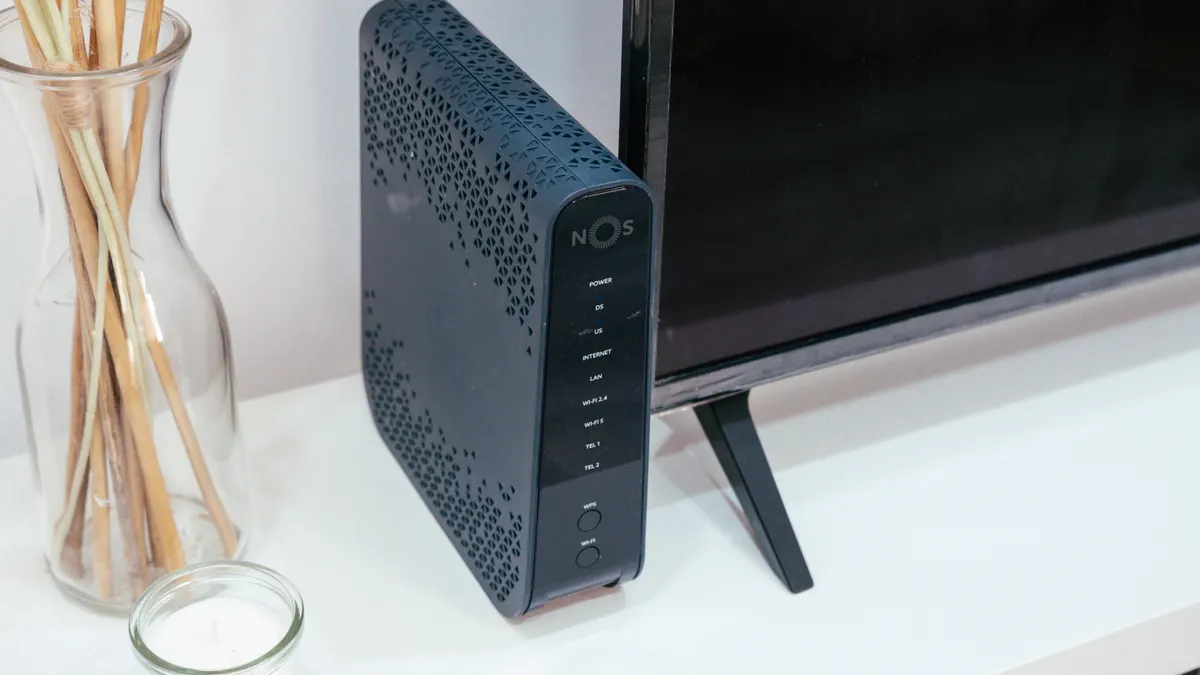
You update router firmware by checking the current version, downloading the correct file or starting the built-in update, then letting the router reboot fully. The exact menus vary, but the sequence is usually the same.
- Open the router admin page in a browser and log in with the admin credentials. You should land on a dashboard or status screen rather than a public website.
- Look for a section called Firmware Update, Administration, Advanced, System Tools, or Router Upgrade. The current version number is usually shown near the model name or status page.
- Write down the version number before changing anything. This gives you a simple before-and-after check and helps if support asks what was installed.
- Check the manufacturer’s support page for your exact model and compare the available version with the one on the router. If the router offers an online check, you can use that too, but the model number still has to match.
- If the router supports automatic download, start the update from the admin page and let it fetch the file itself. If the router requires manual upload, download the firmware file to your computer first and select the correct file in the update screen.
- Start the update and leave the router alone until it finishes. The lights may blink, the Wi‑Fi may disappear, and the browser may disconnect. That is normal during the write process.
- Wait for the reboot to finish. Many routers restart in 2 to 10 minutes, though slower models can take longer. Do not power-cycle it unless the instructions say the process has failed.
- Reconnect to Wi‑Fi and return to the admin page to confirm the new version number. If the dashboard shows the updated release, the install is done.
If the update page offers release notes, read them before you click confirm. Release notes are where the manufacturer usually tells you whether the update includes a security patch, a bug fix, or a change to settings behavior. That small check is useful when a family depends on the router for schoolwork, streaming, and smart-home devices.
How to check the version and read release notes without guessing
You check the version by comparing the firmware number on the router with the number published for that model on the support page. That comparison is the whole point; guessing by date or by feature name is how people install the wrong file.
Start on the status or system page in the router admin page. Look for a version string such as 1.0.3 or 3.2.4. Some routers add a build number. Copy it exactly. Then open the manufacturer’s support page for the model and look for the latest firmware download and its release notes.
Release notes matter because they tell you what changed. If they mention security patches, that is your cue that the update closes a specific risk. If they mention stability or wireless fixes, the update may still be worth doing, but the reason is different. The notes also warn about compatibility issues with certain hardware revisions, which is useful if the same model exists in more than one version.
Do not treat “newer” as automatically “better” if the router is already behaving well and the update is a major version jump with special instructions. If you are unsure, check the vendor notes or ask a qualified technician before changing a stable setup. Some vendors warn that an older configuration needs a reset after a large jump. That is not common on every model, but it is common enough to read the notes instead of skipping them. For example, the FTC’s router security guidance tells consumers to review update instructions before applying changes.
One practical habit helps here: save the release notes or screenshot the version page before updating. If a child’s game console or a printer stops connecting afterward, that record makes troubleshooting much faster.
What to do after the reboot and reset after update
You should confirm the router came back cleanly, then check the settings that matter for family use. The reboot is not the end; it is the checkpoint.
After the firmware update finishes, wait until the Wi‑Fi names reappear and devices reconnect. Then open the admin page again and verify the new version number. If the router asks for a setup wizard or factory reset after the update, follow the model-specific instructions from the release notes, not a generic forum post.
Some updates keep every setting in place. Others restore parts of the configuration or ask for a manual reboot a second time. If that happens, re-check these items in roughly this order: Wi‑Fi name, Wi‑Fi password, guest network, time zone, and any family safety tools already configured on the router. A reset can leave the network technically online while removing the protections that mattered most.
This is also the time to test a few basics. Connect one phone, one laptop, and one streaming device. If the devices reconnect but a printer or smart TV does not, the firmware probably did not fail; the device just needs to reconnect with the updated network name or password.
If the router offers automatic updates, turn them on unless the manufacturer says the feature is beta or experimental. Auto-updates are useful for families because they reduce the time the router spends on outdated firmware between manual checks. The downside is control: an automatic reboot can happen at an inconvenient time, so some households prefer a manual schedule. The CISA and NCSC both recommend keeping router software current and checking vendor update options regularly. CISA also advises reviewing default settings after changes.
Common mistakes that waste time or create risk
The biggest mistake is installing the wrong file. That mistake can cost the router itself. A firmware file for a different revision, even one with a nearly identical name, is not safe to use. Match the exact model and hardware revision before you click upload.
The second mistake is cutting power during the update. That can leave the router half-written and unable to start normally. If the lights stop responding for 3 or 4 minutes, wait longer unless the manufacturer’s page says the process has timed out. Patience is safer than restarting in the middle.
The third mistake is ignoring the admin password. A firmware update is a good time to replace a default password or an old weak one. If someone in the house can guess the router login, they can change network settings without touching a single device. A strong admin password is not glamorous, but it protects the controls that keep family safety features meaningful.
The fourth mistake is assuming the update preserved every rule. Some models keep settings intact, but others reset a few options after a security patch. If the router handles guest access, device schedules, or other family controls, check them again after the reboot. Skipping that review can leave you with a fully updated router that no longer behaves the way the household expects.
This page is not the place to troubleshoot blocked sites, DNS filtering, or device-level parental controls. Those belong elsewhere. The job here is narrower: keep the router firmware current so the network layer stays protected.
When should you rely on auto-updates instead of doing it manually?
You should rely on auto-updates when the router supports them well and the family does not need tight control over reboot timing. That is the right choice for many homes, especially when the router sits in a closet or a hall cabinet and nobody wants to remember quarterly maintenance.
Manual updates are better when the household depends on the network during a specific window, such as remote work, online classes, or evening streaming. A manual firmware update lets you choose the 10-minute gap instead of letting the router choose it for you. It also gives you a chance to read release notes first and decide whether the change is worth applying immediately.
There is also a middle path: turn on auto-update if the vendor has a clear update policy, but still check the admin page once in a while to confirm the version changed and the router did reboot. Auto-update is convenient, not magical.
One caution: if the router is an ISP-managed model, auto-updates may be handled by the provider. In that case, the menu can be locked down, and chasing a manual update may waste time. The right move is to confirm the version in the admin page and use the provider’s support page if the firmware is behind.
FAQ
How often should I update my router?
Update it when the manufacturer releases a security patch or a firmware update that applies to your model, and check the admin page every few months if auto-updates are off. For a home router, waiting a year is usually too long. The right cadence depends on the vendor’s release pattern and whether the router is still supported.
Do router updates affect parental controls?
Yes, they can. A firmware update may leave parental controls unchanged, but some updates reset parts of the configuration or alter the router admin page layout. After the reboot, check the schedules, profiles, and any device lists tied to family rules. If the router uses built-in controls, assume they need a quick review.
Can updating a router fix security problems?
Yes, if the problem is caused by outdated firmware or a known flaw in the router software. A firmware update can close that gap with a security patch. It will not fix weak passwords, bad Wi‑Fi security settings, or unsafe devices already on the network, so it solves one layer of the problem rather than all of it.
Drafted with AI; not yet reviewed by a person.

Related Posts
How to set up a family router safety check

How to use router guest networks for children’s devices