Home network protection for families: the complete guide
Last updated: October 20, 2026
Key Takeaways
- Keep the current router only if it updates, supports WPA3, and lets you manage DNS, names, passwords, and admin access.
- Family protection works best in layers, not from one setting alone.
- Set up one main network, one guest network, WPA3 or WPA2‑Personal, automatic updates if available, and a saved admin login.
- Smart speakers and cameras matter too, but their safety often depends on the phone account that controls them.
Quick Answer
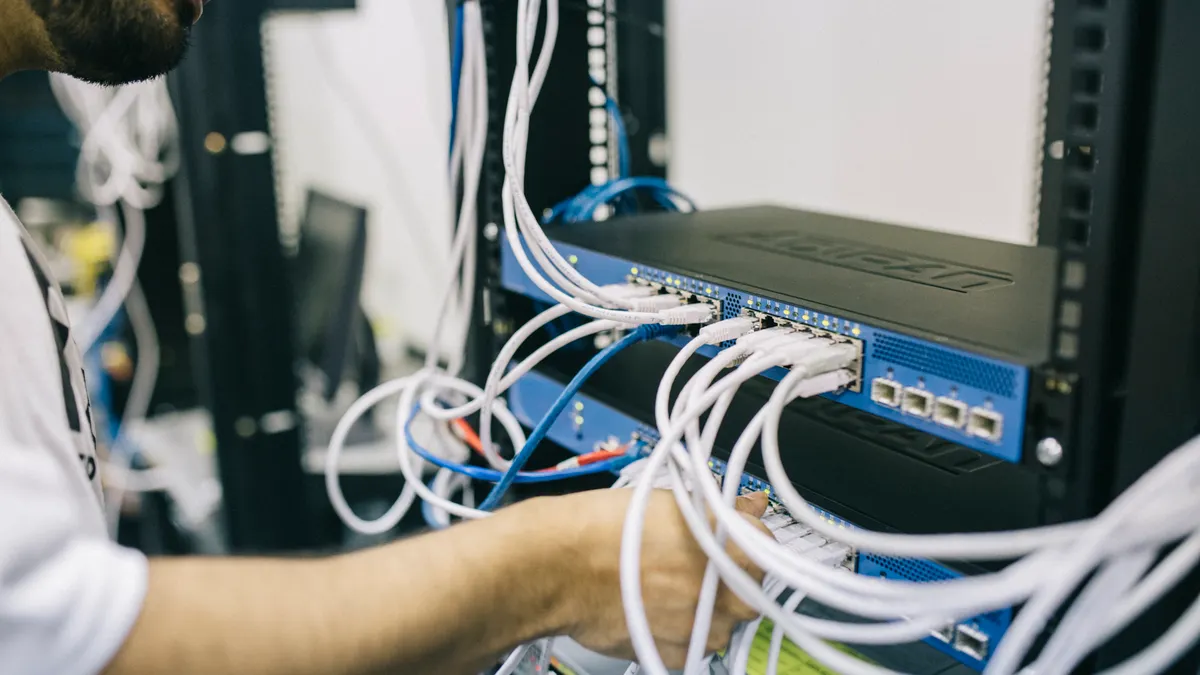
Home network protection for families is usually best handled with a managed router or mesh system, one guest network, automatic updates, and strong device-level account security. In many homes, the practical choice is a router that can still be maintained, not the newest one on the shelf.
Home network protection for families starts with a simple truth: the weakest point is usually not the router, but the mix of phones, tablets, smart TVs, school laptops, and poorly secured gadgets that connect to it. For most households, this guide to Home network protection for families — The Complete Guide shows how to reduce risk without making daily use harder. The right setup gives you three things at once: safer browsing, less exposure from forgotten devices, and a way to contain problems when a child clicks the wrong link or a camera ships with bad defaults.
I write about home and small-office networking and security controls with an eye on the trade-offs that matter in real households: ease of setup, device compatibility, parental controls, and how quickly a mistake spreads across the network.
The first decision: do you want to secure the router or replace it?
The first decision is whether to secure the router you have or replace it, and families should check the manufacturer’s update status or consult a professional if the answer is unclear. Replacing the router is the better move for most families who have an old ISP box with weak software support, because the security gains come from better updates, better app controls, and more reliable guest and family features. Keeping the current router is fine if it already receives firmware updates, supports WPA3, and lets you change DNS, Wi‑Fi names, passwords, and admin access without fighting the interface.
The mistake most people make is treating “Wi‑Fi password” as the whole problem, so families should confirm the full setup and consult a professional if they are unsure about firmware or isolation settings. It is not. A family network needs updates, unique passwords, separate access for visitors, and a plan for devices that should never talk to each other. A router from 2018 may still “work,” but if the maker has stopped shipping security patches, that is a dead end. The Wi‑Fi Alliance’s WPA3 standard matters here because it improves password protection at the wireless layer, but WPA3 does not fix a router with abandoned firmware or bad defaults. See the Wi‑Fi Alliance overview of WPA3 and the National Institute of Standards and Technology guidance on home network basics for the bigger picture: Wi‑Fi Alliance WPA3 and NIST small office/home office security guidance. Related reading: what WPA3 changes and how to check router updates.
For families, the cleanest recommendation is this: replace the router if it lacks current updates, WPA3, guest isolation, or a usable companion app. Keep it if it already has those features and still gets security patches. This is not about buying the flashiest mesh box. It is about getting a device that can be maintained.
That choice is wrong for one group: people who only need a quick Wi‑Fi signal boost in one dead room. If the issue is coverage, not security, a mesh node or access point may solve the real problem without replacing the core router.
What actually protects a family network?
A family network is protected by layers, not by one magic setting. The three layers that matter most are the router, the devices, and the habits around them. If any one of those layers is weak, the others have to work harder.
Start at the router because it is the gatekeeper. Change the admin password from the default immediately. Turn on WPA3 if every device in the house supports it; otherwise WPA2‑Personal with a long passphrase is still far better than a weak password. Turn off Wi‑Fi Protected Setup (WPS) if the router offers it, because that old convenience feature has a bad history and most families do not need the risk. Use a guest network for visitors, smart plugs, and other low-trust gadgets when possible. Many consumer routers also support client isolation or “AP isolation,” which keeps guest devices from reaching one another or your main devices. See also home router settings that matter.
Then secure the devices themselves, because a strong router cannot repair an unlocked phone or an outdated laptop. A smart TV with a weak password is not made safe by a strong router password. A child’s tablet with no screen lock can be opened by anyone in the house. A laptop without automatic updates becomes the easiest entry point. Apple, Google, and Microsoft all give built-in update and account protections, but they only help when they are turned on and kept current. For device hygiene, use parental controls on phones and tablets and automatic update settings.
The third layer is the household routine. The safest family network still can be undermined by reused passwords, shared logins, and forgotten devices that nobody checks. A family should know which devices are supposed to be on the network, which accounts are used for streaming and school, and who controls the router admin login. Without that list, you cannot tell the difference between a normal device and a surprise one.
A generic article usually stops at “use a strong password.” That advice is too thin. A strong password helps, but it does not create segmentation, and segmentation is what keeps a compromised smart bulb from becoming a path to a child’s laptop.
How should families set up the router?
Families should set up the router with one main network, one guest network, WPA3 or WPA2‑Personal, automatic updates if available, and a documented admin login stored somewhere safe. That combination covers the most common household risks without making daily use miserable.
Here is the practical order:
- Change the admin username and password.
- Update the firmware.
- Rename the Wi‑Fi network to something that does not reveal the family name or address.
- Set the strongest security mode all devices can handle.
- Create a guest network.
- Disable WPS if the router allows it.
- Review device lists at least monthly.
The router admin password is the one most people forget. If someone gains that login, they can change DNS settings, redirect traffic, or lock the family out. That is why password managers matter even in a home. They solve the “I need a good password and I cannot remember one” problem.
For DNS, some families benefit from a filtered service, but this should be treated as one layer, not a cure-all. DNS filtering can block many known bad domains and some adult content, depending on the provider, but it does not stop everything and it does not replace supervision. If a child uses cellular data, another Wi‑Fi network, or a VPN, the DNS filter may not apply. That trade-off matters. It is useful for younger children and shared household devices; it is not a complete content-control system for a teenager with a phone. See DNS filtering options for more detail.
If the router supports separate bands, use both 2.4 GHz and 5 GHz as intended. Older smart-home devices often only connect on 2.4 GHz, while laptops and phones usually benefit from 5 GHz for speed and congestion. If your router offers band steering, that can simplify things, but the “best” choice is the one that keeps the household connected without constant reconnects.
The setup is not right for families who need a hands-off network because no one in the home will maintain it. In that case, buying a more managed system is smarter than owning a manual one and leaving it half-configured.
Which devices deserve extra protection first?
The devices that deserve extra protection first are the ones that can read messages, store schoolwork, or unlock other accounts: parent phones, family laptops, child tablets, and any device used for email or banking. Smart speakers and cameras matter too, but they usually sit behind the account security of the phone that controls them.
A phone with saved passwords is a master key. A laptop with school login, email, cloud storage, and browser history can expose far more than a smart thermostat ever will. That means the family should prioritize screen locks, automatic updates, encrypted device storage where available, and account recovery options on those endpoints before worrying about every lamp or toy in the house.
For children’s devices, use the operating system’s built-in family controls rather than trying to enforce everything at the router. Apple Screen Time, Google Family Link, and Microsoft Family Safety are designed for account-level supervision. They can manage screen time, app approvals, content filters, and location features more effectively than a router can. A router sees traffic. The operating system sees the account. The account is where the real control lives.
For smart-home devices, change defaults immediately. That includes the password for the companion app account, not just the Wi‑Fi password. Many devices also ask for microphone or camera permissions that are unnecessary for core function. A smart speaker does not need access to your photo library. A camera should not share one login with the whole family. If a product offers multi-user roles, use them. If it does not, treat it as a single-purpose device and restrict what it can reach.
The drawback of this approach is overhead. More accounts mean more passwords and more logins. That is the price of reducing blast radius. Families that refuse to split accounts often end up with one shared login that children, guests, and devices all use. That is convenient and fragile.
What is the best home network setup for kids?
The best home network setup for kids is a router with guest or child-specific controls, plus device-level parental controls on the child’s own tablet or phone. The router helps with network-wide rules; the device rules handle the app store, screen time, messages, and account recovery.
For younger children, a filtered DNS service and a child-managed account can be enough when paired with supervised devices. For older children, the goal should shift from blocking everything to limiting risk and teaching habits. That means no shared passwords, no unknown apps, no public Wi‑Fi on a sign-in screen, and no accepting random Bluetooth or file-transfer prompts.
The router can still help. Many modern systems let you pause internet access for a device, schedule bedtimes, or assign profiles. That is useful for family routines, but it should not be the only control. If a child uses cellular data, hotspot access, or school-issued hardware, the router no longer sees the whole picture.
This is where many generic guides get lazy. They recommend “parental controls” without distinguishing between network filtering and account control. Those are different tools. A router can block some sites. It cannot reliably manage app purchases, in-app browsers, or social-media age settings. An operating system can do more, but only if the child’s device is enrolled correctly and the parent account has the right privileges.
The right family setup depends on age, not just technology. A six-year-old needs simpler controls and tighter device supervision. A thirteen-year-old needs more autonomy and more transparency. A sixteen-year-old usually needs a conversation about trust, privacy, and safety rules more than a wall of blocks. No router can substitute for that.
A head-to-head look at common protection paths
For most families, a managed mesh router wins over a basic ISP router because it is easier to keep updated, easier to segment, and easier to administer from a phone app. A basic router still wins when the budget is tight, the household is small, and the current hardware already supports modern security features.
| Criteria | Managed mesh system | Basic ISP router | Winner for condition |
|---|---|---|---|
| Security updates | Usually easier to apply and monitor through an app | Often depends on the ISP and may lag | Families who want simpler maintenance |
| Guest network | Common and easy to enable | Sometimes available, sometimes hidden | Homes with frequent visitors |
| Device management | Often includes profiles and pauses | Usually limited | Parents who want simple controls |
| Setup complexity | Moderate, but guided | Low at first, confusing later | Nontechnical families |
| Coverage | Better for larger homes and dead zones | Fine for apartments or small homes | Multi-floor homes |
| Admin access | Clearer from a mobile app | Often clunky web login | Families that need visibility |
| Cost to adopt | Higher up front, current price varies | Usually already included | Households watching spending |
| Vendor lock-in | Can be stronger with app-based ecosystems | Lower, but also fewer features | Users who dislike dependence on one app |
| Feature depth | More likely to offer WPA3, device lists, and pausing | Basic networking only | Homes with children and smart devices |
The table points to a practical conclusion: a managed mesh system wins if the household needs visible controls, better coverage, and easier upkeep. The basic ISP router wins only if it already does enough and the family will actually maintain it. A weak but free router is still a bad deal if nobody can inspect devices or isolate guests.
Which setup should most families choose?
Most families should choose a managed router or mesh system with WPA3, guest networking, automatic updates, and app-based device visibility. That is the best balance of security, convenience, and long-term maintainability for a house with phones, school devices, streaming boxes, and a few smart-home gadgets.
The reason is simple: security that is too hard to maintain eventually falls apart. A family is not a lab. People forget passwords, add new devices, bring home game consoles, and hand tablets to guests. The system has to survive ordinary life. Managed systems are better at that because they make the right actions easy: update, pause, review, isolate, and rename.
A basic router is still acceptable for a small household with one or two adults, a limited number of devices, and a strong habit of keeping firmware current. It is also acceptable if a new mesh system would be overkill for a one-bedroom apartment. But the bar is high. If the router has no update history, weak parental tools, no guest separation, and a confusing admin page, it belongs in the replacement pile.
This is the judgment that matters most: buy for the network you actually have, not the one in the marketing photo. A family with five people, school logins, and smart cameras needs visibility. A family with two laptops and a printer may not.
When does this advice change completely?
This advice changes completely in four situations. The general recommendation flips if any of these is true.
First, if the family already uses a professional-grade firewall, VLANs, or a separate access point system, the router choice is no longer the main story. In that case, the right move may be to keep the existing network gear and tighten policy, because the household already has segmentation.
Second, if the main problem is not security but dead zones, the fix is coverage, not a fresh security-first router. A mesh node, wired access point, or better placement may solve the problem without changing the core setup. Buying security features to cure poor signal is wasteful.
Third, if the household includes a teenager with a personal phone and active privacy needs, heavy-handed blocking can backfire. That is a family policy issue more than a router issue. The device controls should be age-appropriate and discussed openly, not silently imposed.
Fourth, if the home contains sensitive work equipment, a medical device, or a camera system that feeds into a business account, the family should stop treating this as ordinary home networking. That is the point at which a qualified IT professional is worth consulting, because the failure modes are more serious and the consequences can extend beyond the house.
The common thread is this: the advice here is built for normal family life, not for specialized networks. Once the home becomes a small office, a multi-camera property, or a highly regulated workspace, the rules change.
What to do this week, not someday
You should tighten the family network this week by changing the router password, checking firmware, creating a guest network, and reviewing the devices already connected. Those four tasks solve more real-world risk than buying a new gadget and leaving it unopened.
Start with the router admin login. Then check whether the router still gets updates from the manufacturer or ISP. If it does not, plan a replacement. If it does, confirm WPA3 or WPA2‑Personal is active and WPS is off. Next, review the connected-device list and remove anything you do not recognize. Then move the smart gadgets and visitors onto a guest network if the hardware supports it. If the network feels unfamiliar, consult a professional before making changes that could disrupt work or school.
After that, secure the endpoints. Update the family phones and laptops, turn on automatic updates, and make sure each child’s device uses the proper family account. If you want web filtering, choose one family-wide method and apply it consistently rather than stacking three half-working ones.
A strong home network is not a trophy. It is a routine. The best setup is the one a family can keep current for months, not the one that looks impressive during installation and then drifts out of date.
The verdict
Choose a managed mesh router if you want the easiest path to current security, guest separation, and device visibility in a house with children, smart devices, and more than a handful of endpoints. Choose a basic ISP router only if it already supports WPA3, guest access, and ongoing updates, and the household is small enough that simpler gear will stay maintained. Neither if the home network also carries business systems, medical devices, or specialized security needs that call for a professional design.
Drafted with AI; not yet reviewed by a person.