How to set up a family router safety check
Last updated: October 22, 2026
Key Takeaways
- Open the router admin panel first; it controls the settings that matter most.
- Change the admin login before Wi‑Fi names, guest access, or DNS.
- Use WPA3 when all devices support it; otherwise use WPA2‑Personal and update firmware first.
- Set up guest Wi‑Fi for visitors so it stays off the main family network.
- Start with the router admin panel and record what you find
- Change the admin password before anything else
- Which Wi‑Fi security setting should I use, WPA2 or WPA3?
- Set up a guest network that actually stays separate
- Review connected devices and remove the ones you do not recognize
- Update firmware and tighten DNS settings
- What a finished family router safety check should leave in place
- How do I know if my router is secure?
- What router settings should parents check first?
- Should I change the default router password?
A family router safety check is a 20-to-30-minute review of the settings that protect every device on your home network: the admin password, Wi‑Fi security, firmware, guest access, and DNS settings. This guide to how to set up a family router safety check is the right first move if you want the router itself to stop being the weak link.
Start with the router admin panel and record what you find
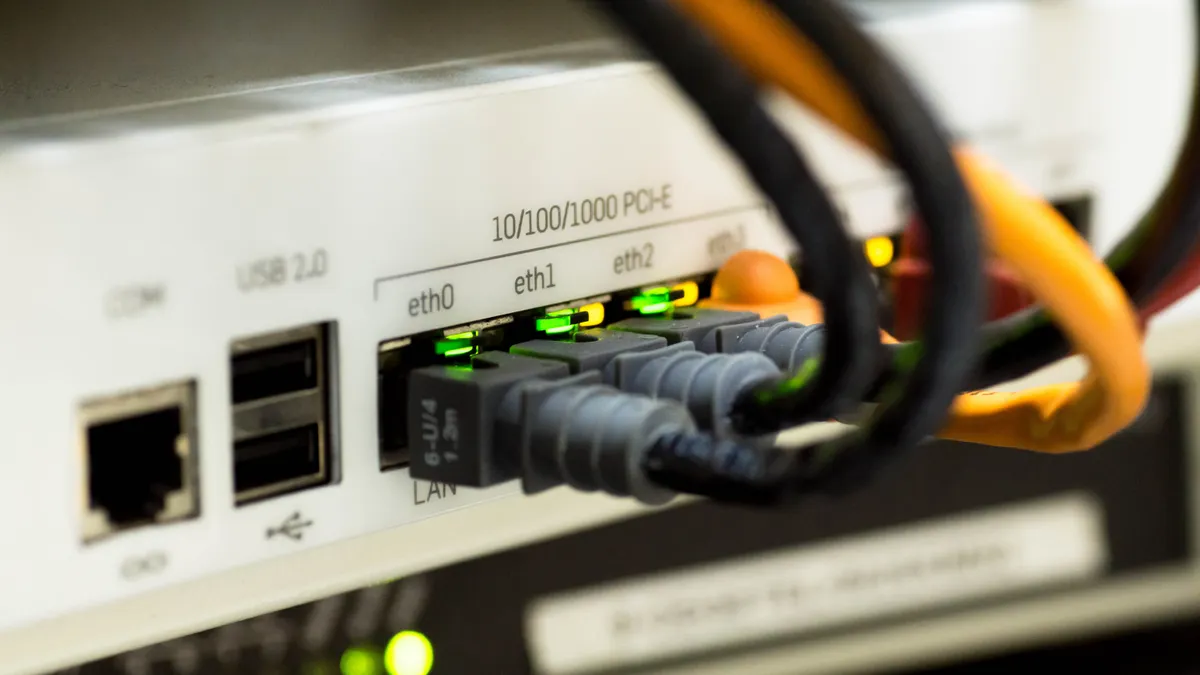
Open the router admin panel first, because every other safety setting lives there. The exact address is often printed on the router label or in the setup paperwork, and common local addresses include 192.168.0.1 and 192.168.1.1. If the login screen asks for a username and password you do not recognize, stop and use the credentials on the device label or from the internet provider that supplied the router.
Before changing anything in a family router safety check, write down three things: the router model, the current firmware version, and the names of the Wi‑Fi networks you see. That record saves time if you need to compare menus later. A mesh system may show several nodes or a single app-controlled dashboard; a traditional single-box router usually has one web interface.
This first pass is about orientation, not fixing. Look for sections named Wireless, Security, Administration, Firmware, Guest Network, DNS, and Connected Devices. Some brands bury these under “Advanced” or “More Settings.” If the interface has a “basic” and “advanced” view, switch to advanced before you decide anything is missing.
A good family router safety check starts here because the router can expose old defaults for 5 GHz and 2.4 GHz bands, unknown devices, and outdated firmware all at once. It is also the point where a homeowner can decide whether the router is old enough to replace. If the panel is too confusing to understand after a careful look, that is a sign the family needs a newer model or the help page from the router maker, not a guess.
Change the admin password before anything else
Change the router admin password before you touch Wi‑Fi names, guest access, or DNS. The admin password protects the control panel itself, and a weak one lets anyone on the network undo later changes in seconds.
In the Administration, System, or Management section, set a new password that is long and unique. A passphrase of 14 characters or more is a practical floor for a home router. Use something that is not reused on email, banking, or shopping accounts. If the router allows a separate admin username, change that too; many people forget the username is just as useful to an attacker as the password.
Here is the core procedure:
- Sign in to the router admin panel and open Administration or System settings.
- Change the default admin password to a unique passphrase, then save the change.
- If the router offers a separate admin username, replace the factory default with something non-obvious.
- Write the new login in a password manager or another secure place, and if you are unsure about the best way to store it, consult the router maker’s support or another professional source rather than keeping it on the router.
- Sign out and sign back in once to confirm the new credentials work.
The cost of skipping this step is simple: anyone who learns the old login can change every other protection setting. The cost of a weak password is slower but worse, because it invites reuse. Some routers also let you disable remote administration from the internet. Turn that off unless you have a specific reason to keep it on, because a home router does not need to be managed from a café or airport.
For a general standard on password strength, CISA’s guidance on strong passwords is a reliable reference. NIST’s Digital Identity Guidelines, SP 800-63B, also support long, unique secrets over short, reused ones.
Which Wi‑Fi security setting should I use, WPA2 or WPA3?
Use WPA3 if every device on the network supports it; otherwise use WPA2‑Personal with a strong passphrase and update the router firmware first. WPA3 is the stronger option on newer routers, but older phones, printers, TVs, and game consoles may still need WPA2 to connect.
In the Wireless Security section, look for security mode choices such as Open, WEP, WPA, WPA2, WPA3, or Mixed. Open and WEP are not appropriate for a family home. WPA2‑Personal is still common and acceptable when paired with a long password. WPA3‑Personal is better when the router and your devices support it. If the router offers “WPA2/WPA3 mixed mode,” that can help during a transition, but it is not ideal forever because mixed modes are usually a compromise for compatibility.
The practical move is to test the family’s most important devices after each change: phones, school laptops, smart TV apps, and printers. If one older device drops off the network, decide whether that device is worth keeping on the weaker setting or whether it should be replaced. A router that only supports WPA on its main network should be considered overdue for replacement, not “good enough.”
Also check the Wi‑Fi password itself. A family network should not use the same word as the router brand, the street name, or the child’s school mascot. A 16-character passphrase is much harder to guess than a short one, and it also reduces the chance of accidental sharing.
One useful habit is to separate the names of the main Wi‑Fi network and the guest network. That makes it easier to spot which devices belong where, especially when the router lists dozens of connections. It also helps if you later review connected devices and want to tell family gear from visitor gear in under a minute.
Set up a guest network that actually stays separate
Set up a guest network if visitors, babysitters, grandparents, or short-term renters need Wi‑Fi, because it keeps their devices off your main family network. A guest network is not just a second password; it should isolate guest devices from printers, shared drives, smart home hubs, and the router admin panel.
Open the Guest Network section and create a separate network name and password. Use a different passphrase from the main Wi‑Fi. Turn on isolation or “allow guests to see each other” set to off, if the router provides that option. Some routers also let guest users reach local devices; leave that disabled unless you truly need it for a printer or streaming device.
A family router safety check should confirm four things here: the guest network has its own password, it does not expose the admin panel, it does not have access to file shares or smart-home devices, and it turns off when not needed. Some routers let you schedule guest Wi‑Fi by hour. That is useful for weekend visits or a homework-tutoring session and then getting it out of the way afterward.
Do not use the guest network as a catch-all for household devices. If a child’s tablet, a camera, or a streaming box ends up on guest Wi‑Fi, you lose the ability to manage it cleanly later. Keep family-owned devices on the main network unless you have a specific reason to isolate them.
A guest network is one of the few router features that gives quick value without creating much maintenance. Still, it has a limit: it helps with network separation, not with screen-time rules or app-level restrictions. For the bigger family protection picture, this article fits under the home network protection for families hub, where the router sits alongside the rest of the home setup.
Review connected devices and remove the ones you do not recognize
Review connected devices now, because a safe router is not just about settings; it is also about who is actually on the network. The device list may show names, MAC addresses, IP addresses, or vague labels like “unknown” and “wireless client.” That is normal, but it still needs a careful pass.
Open the Connected Devices, Client List, or DHCP table and compare each entry to the family’s phones, laptops, tablets, TVs, printers, game consoles, and smart-home gear. Expect some devices to appear twice if the router shows both 2.4 GHz and 5 GHz clients separately. If a device is unfamiliar, check the vendor name, not just the device nickname. A printer may show up under the manufacturer’s name instead of “Printer.”
Look for three problems: a device you do not recognize, a device that should not be online at this hour, and a device with a name that suggests it belongs to an old roommate, neighbor, or former family member. If the router supports blocking by MAC address, use that for the unknown device after you confirm it is not a normal household item. If a device looks suspicious and you cannot identify it, change the Wi‑Fi password right away and reconnect only the devices you trust.
This review is also the quickest way to spot forgotten gear. A smart plug from three years ago, a retired phone still linked to the network, or a spare Wi‑Fi extender can create clutter that makes real problems harder to notice. Removing old devices is not just housecleaning; it lowers the chance that an obsolete password or forgotten device becomes a back door.
Update firmware and tighten DNS settings
Update the firmware and check DNS settings last, because these two settings influence how the router behaves for every device on the network. Firmware is the router’s internal software, and outdated firmware can leave known security flaws unfixed. DNS settings decide which name server the router uses when family devices look up websites and apps.
In the Firmware, Update, or Maintenance section, check the current version and install any update offered by the manufacturer. Some routers can update automatically; if yours can, turn that on after you confirm it is the official vendor feature. A manual update may take 5 to 15 minutes and may reboot the router once. During that time, internet access will drop briefly, so do not start it during a video call or class session.
Then open the DNS settings. Many routers default to the internet provider’s DNS servers, which is not automatically bad, but it is worth knowing what the router uses. If you deliberately choose a family filtering DNS service, set it at the router so every device on the network uses it by default. If you do not want content filtering at the router level, leave the provider DNS in place and simply confirm the setting is not something you never intended to change.
DNS is a place where people overpromise. It can help with basic filtering and safer lookups, but it is not a full child-safety system and it does not replace app controls, device profiles, or supervision. It also cannot stop a child from using cellular data or a different Wi‑Fi network. That limitation matters, because router-level safety is network-wide, not device-specific.
For a neutral technical reference on Wi‑Fi security and router setup concepts, the Wi‑Fi Alliance and CISA both publish material that is worth reading when a router menu uses unfamiliar terms. If the firmware update fails, do not keep clicking random buttons; use the manufacturer’s support page for the exact model number you wrote down at the start.
What a finished family router safety check should leave in place
A finished check should leave you with one locked-down admin login, one current firmware version, a secure main Wi‑Fi network, a separate guest network, and a cleaned-up list of devices you recognize. That is the minimum useful result for a first audit, and it is enough to make the home network safer without turning the router into a science project.
A family router safety check usually ends well when the router has fewer unknowns, but that is not the only measure. You should know which security mode it uses, who can reach the admin panel, and whether guests are isolated from family devices. If you changed several settings at once, keep your notes for a week. That makes it easier to reverse a single change if a printer, TV, or console stops connecting.
This is also where judgment matters. If the router is more than a few Wi‑Fi generations old, cannot do WPA3, cannot update firmware cleanly, or has menus so limited that guest isolation is impossible, replacement may be smarter than another round of workarounds. That is not a failure of the check; it is the point of the check. A home router should protect the family network, not force the family to protect the router from itself.
How do I know if my router is secure?
A router is reasonably secure if it has a changed admin password, current firmware, WPA2 or WPA3 on the main Wi‑Fi, and no unknown devices on the network. It should also have guest access isolated from the main network. If any of those pieces is still at a factory default, the router is not in good shape yet; if you are unsure how to verify it, consult the router maker or a qualified professional and follow a source such as CISA or the Wi‑Fi Alliance.
What router settings should parents check first?
The first settings to check are the admin password, Wi‑Fi security mode, firmware version, guest network, and connected devices. Those five settings affect the whole home network, not just one phone or tablet. DNS settings come next if you want the router to control name lookups for every device on the network.
Should I change the default router password?
Yes, the default router password should be changed right away. Default credentials are widely known and often printed on the device label, which makes them a weak point if anyone gains access to the network. Use a unique passphrase for the admin panel and store it somewhere secure, because the router controls the entire home network.
Drafted with AI; not yet reviewed by a person.

Related Posts
How to use router guest networks for children’s devices
How to Update Router Firmware for Family Safety