
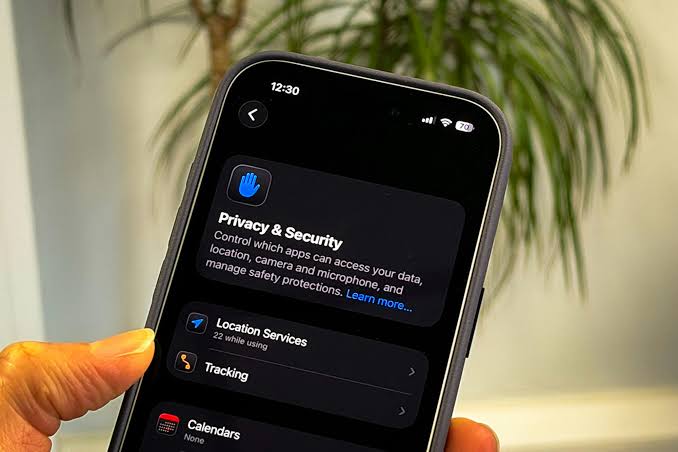
Device and Platform Safety Setup — The Complete Guide
Last updated: August 10, 2026
- Log into your router’s admin panel (typically 192.168.1.1 or 192.168.0.1, check the label on the device).
- A router running default credentials or outdated firmware exposes every device on the network; firmware audits take under 20 minutes.
- 1Password costs $2.99/month (individual) and Dashlane $4.99/month — both are polished paid alternatives.
- App-based TOTP and hardware keys (YubiKey is the most widely supported, starting at around $25) are substantially stronger.
Your device is probably less secure than you think it is, and fixing that takes about an afternoon — though the right setup depends on your specific situation and risk level; if you are unsure, consult a cybersecurity professional or refer to guidance from the UK National Cyber Security Centre. Device and platform safety setup is not about installing a single app and calling it done — it is a layered set of decisions, each with a specific order and a specific “it depends.” Get the order wrong and your layers contradict each other. Skip the layering and you have the illusion of security, not the thing itself.
Because the right device and platform safety setup depends on where you are starting, this guide walks through each layer in order — beginning with your threat model, moving through device-level controls, and finishing with ongoing maintenance. Start at the section that matches where you are right now.
Quick Answer: A complete device and platform safety setup takes roughly one afternoon (about 3–4 hours) and covers six layers: a password manager, two-factor authentication, OS hardening, account security, router hardening, and ongoing maintenance. Most account takeovers exploit just one missing layer — most commonly a reused password or absent 2FA.
Key Facts
-
Reused passwords are involved in the majority of account takeovers; a password manager eliminates reuse across all accounts.
-
SMS-based 2FA is vulnerable to SIM-swapping; app-based TOTP (e.g., Authy, Google Authenticator) is substantially stronger.
-
Most successful ransomware attacks exploit vulnerabilities that already had patches available — OS updates are a primary defence.
-
Hardware security keys (e.g., YubiKey, available from around $25–$55) prevent phishing-based 2FA bypass in a way app-based TOTP cannot.
-
A router running default credentials or outdated firmware exposes every device on the network; firmware audits take under 20 minutes.
-
NextDNS offers a DNS-layer network filter with a free tier (up to 300,000 queries/month) and a paid tier (~$1.99/month) that removes the limit.
-
NIST’s Cybersecurity Framework and the NCSC’s individual guidance are the two most authoritative free references for personal and small-business device security.
What Actually Determines the Right Device and Platform Safety Setup for You
Before you install anything or change any setting, you need to know which threat model applies to you. “Threat model” sounds technical but the question is simple: who or what are you protecting against, and how much effort will they put in?
Most people fall into one of three categories:
Everyday user: You want protection from phishing, credential stuffing, malware, and the kind of account takeover that happens when a data breach exposes your password somewhere. This describes the vast majority of people and it is the scenario most generic security articles get wrong by over-engineering.
Because the everyday threat is mostly opportunistic, a small number of well-chosen controls covers it. Small business or professional users face a different picture: you handle client data, financial records, or intellectual property. Regulatory minimums (GDPR, HIPAA, SOC 2 depending on sector) set a floor, not a ceiling. You also have employees or collaborators whose devices you do not fully control.
That regulatory and collaborative exposure changes the calculus again for a third group. Elevated personal risk applies to journalists, activists, domestic abuse survivors, or anyone who has a specific, identified person or organisation with both the motive and the capability to target them specifically. This is different from the general threat model in kind, not just degree. Standard consumer advice is often inadequate here.
Quick check: If you are not sure which category applies, you are almost certainly in the first one. The second and third categories come with some awareness of why they apply.
Your SituationBest PathWhy Other Options Fail
Personal devices, general usePassword manager + MFA + OS hardeningAntivirus-only misses credential attacks; VPN-only misses local threats
Small business, mixed devicesMDM platform + enforced MFA + endpoint detectionConsumer tools lack central management; one unpatched device breaks the whole chain
High personal riskHardened device baseline + Signal + physical OPSEC reviewSoftware alone cannot compensate for physical access or social engineering at scale
Shared household devicesSeparate user accounts + parental controls + router-level filteringPer-device software misses the shared router; a single admin account lets anyone change anything
Start Here: The Foundation Every Device and Platform Safety Setup Needs
If you do nothing else, do these four things in this order. They cover the largest share of how accounts and devices actually get compromised.
-
Move every password into a password manager. Bitwarden is free, open-source, and independently audited. 1Password costs $2.99/month (individual) and Dashlane $4.99/month — both are polished paid alternatives. The key behaviour change: every account gets a unique, randomly generated password. Reuse is the single most common vector for account takeover. Once a password appears in a breach database, every account sharing it is exposed.
-
Enable two-factor authentication on every account that supports it, starting with email and banking. Use an authenticator app (Authy, Google Authenticator, or the built-in iOS/Android options) rather than SMS wherever you have the choice. SMS 2FA is meaningfully better than nothing but is vulnerable to SIM-swapping. App-based TOTP and hardware keys (YubiKey is the most widely supported, starting at around $25) are substantially stronger. Your email account is the master key — if someone owns your email, they can reset every other password.
-
Run operating system updates immediately and set them to automatic. The majority of successful malware and ransomware attacks exploit vulnerabilities that already had patches available. This applies to Windows, macOS, iOS, Android, and — critically — your router’s firmware, which most people never touch.
-
Check your email address at haveibeenpwned.com (operated by security researcher Troy Hunt) and enable breach alerts. This tells you which services have already leaked your credentials and whether your current passwords need rotating.
Quick check: If any of the four above is not done, it outweighs every other security investment you could make. Do not move on until these are in place.
If You’re on Windows: The Settings That Matter and the Ones That Don’t
Windows ships with more capable built-in security than it did a decade ago, but the defaults are not all the way there.
Microsoft Defender is legitimately adequate for most users and does not need a third-party antivirus stacked on top of it. What it needs is to actually be running and up to date. Check: Settings → Windows Security → Virus & threat protection. If it shows anything other than green, that is your first fix.
BitLocker (available on Windows Pro and Enterprise, not Home) encrypts your drive so that physical theft does not expose your data. If you are on Windows Home, the equivalent is Device Encryption — check Settings → Privacy & Security → Device encryption. If your device supports it and it is off, turn it on. The trade-off: if you forget your recovery key and lose access to your account, recovery is difficult. Store the recovery key somewhere you will actually find it — not on the same device.
Windows Hello (PIN, fingerprint, face unlock) replaces your password for local login. For most users it is more convenient and — because the credential is stored in the device’s TPM chip and is never transmitted over a network — generally considered stronger than a reused typed password. That said, security outcomes depend on your specific setup; for guidance tailored to your situation, consult the Microsoft Security documentation or a cybersecurity professional. The PIN looks weaker than a long password but is not — it is bound to your specific device, not reusable elsewhere.
Beyond those headline controls, Windows has a setting called Controlled Folder Access under Windows Security → Ransomware protection. It is off by default. It restricts which apps can write to your Documents, Pictures, and Desktop folders. It causes friction — some legitimate apps will be blocked and you will need to whitelist them — but it is one of the better ransomware mitigations available to home users at zero cost.
Quick check: Is BitLocker or Device Encryption on? Is Defender active and updated? Is your Microsoft account (used as your login) using 2FA? Those three questions cover the main exposures.
If You’re on macOS or iOS: What Apple’s Defaults Do and Don’t Cover
Apple’s reputation for security is partly earned and partly marketing, and it matters to know which is which.
On macOS, FileVault encrypts your drive and should be on. Check: System Settings → Privacy & Security → FileVault. Unlike Windows Home, it is available on all Mac hardware. The same recovery key warning applies — store it somewhere offline.
Gatekeeper limits which apps can run based on their origin. The default setting (apps from the App Store and identified developers) is the right balance for most users. Turning it off entirely to run unsigned software is a meaningful risk elevation, and you should do it only for specific apps you have a reason to trust, not as a permanent setting.
iCloud Keychain is Apple’s built-in password manager. It is convenient and — within its supported platforms — generally considered reasonably secure by security researchers, though as with any security product individual outcomes vary; see Apple’s iCloud Keychain security overview for technical detail. However, it is locked to Apple’s ecosystem. If you ever move to Windows or Android, migration is painful. A cross-platform password manager like Bitwarden gives you the same credential security without the lock-in — that is the honest trade-off.
On iOS, the most important settings are: Face ID/Touch ID enabled, “Erase Data” after 10 failed passcodes turned on (Settings → Face ID & Passcode), and Lockdown Mode for anyone who needs it (introduced in iOS 16 in 2022, it is specifically for high-risk users and intentionally limits functionality — it is not appropriate or necessary for general use).
Advanced Data Protection (Settings → your name → iCloud → Advanced Data Protection) enables end-to-end encryption for most iCloud data categories. It requires setting up account recovery contacts first, because Apple cannot help you recover your data if you lose access. The protection is real; the recovery friction is also real.
Quick check: Is FileVault on? Is your Apple ID using two-factor authentication? Are your iOS devices using a 6-digit passcode or longer (4-digit is weaker than it looks)?
Platform Safety Setup: Accounts, Social, and Cloud Services
Devices are only half the picture. The accounts that run on them — Google, Microsoft, Meta, cloud storage — each have their own safety settings, and most people have never looked at them.
Google Account: Visit myaccount.google.com/security. The Security Checkup walks through which third-party apps have access to your account (revoke anything you do not recognise or use), which devices are logged in, and whether 2FA is active. Google’s Advanced Protection Program is available for free and is worth considering for anyone with a high-value Google account — it enforces hardware key 2FA and limits third-party app access significantly.
Microsoft Account: account.microsoft.com/security. The same logic applies: check connected apps, active sessions, and recovery methods. Recovery phone numbers and email addresses are high-value targets — keeping them current and secured with their own strong credentials is important, though the specifics of what “secured” means for your situation may warrant advice from a cybersecurity professional. The Microsoft account security guidance covers the recommended steps in detail.
Social media: Every major platform (Meta, X/Twitter, LinkedIn, TikTok) has a security settings page. The most consistently overlooked setting is active sessions — you can see every device and location currently logged into your account. An unknown session is a live intrusion. Review these annually at minimum.
Beyond active sessions, shared folder permissions in cloud storage (Google Drive, Dropbox, OneDrive) drift over time. People leave organisations, collaborations end, and the shared access stays. A periodic audit of who has access to what is maintenance, not paranoia. In Google Drive: Settings → Manage Apps and check each shared drive. In Dropbox: dropbox.com/account/security.
Quick check: Pick your most important account — likely email or cloud storage. Go to its security page right now. Is 2FA active? Are there any connected apps or active sessions you do not recognise?
Router and Home Network Safety: The Layer Almost Everyone Ignores
Your router is a computer running software, connected to the internet full time, usually never updated, and managing every device in your home or office. It is also the most commonly neglected device in any home device and platform safety setup.
-
Change the default admin password. The default credentials for most router models are publicly documented. If you have not changed yours, anyone on your network (or, on some older models, from outside it) can access your router’s admin panel.
-
Update the router firmware. Log into your router’s admin panel (typically 192.168.1.1 or 192.168.0.1, check the label on the device). Find the firmware update option — it is sometimes under “Administration” or “Advanced.” Many routers can check for updates automatically. Enable that.
-
Set your Wi-Fi to WPA3 if your router supports it; WPA2 if not. WEP is broken and should not be in use anywhere. WPA3 is meaningfully stronger than WPA2 against offline password-cracking attacks.
-
Create a guest network for IoT devices — smart TVs, cameras, smart speakers, thermostats. These devices often have poor security update records and should not be on the same network segment as your laptop and phone. A guest network that cannot see other local devices contains the blast radius if one of them is compromised.
-
Consider a DNS-layer filter like Cloudflare’s 1.1.1.1 for Families or NextDNS. These work at the router level, blocking known malicious domains before a connection is even made, for every device on your network. NextDNS has a free tier (up to 300,000 queries/month) and a paid tier at $1.99/month without a query limit.
Quick check: Do you know the admin password to your router? Have you logged into it in the last year? If the answer to either is no, that is where to spend the next 20 minutes.
When the Standard Safety Advice Is Wrong
This is where generic guides fail. The standard checklist is correct for the standard case. Here are the situations where following it as written will either leave you under-protected or create new problems.
Situation 1: You share an account with a partner or family member. Most security advice assumes one account per person. Joint financial accounts, shared streaming services, or a family Apple ID create a genuine tension — strong 2FA can lock out the other person. The answer is not to skip 2FA but to set up recovery options that both people control, and to use family sharing features (Apple Family Sharing, Google Family Group) rather than shared login credentials. Shared credentials also mean neither person can prove what they individually accessed.
Situation 2: You rely on SMS for 2FA and cannot change that. Some banks and government services still only offer SMS-based verification. If SIM-swapping is a concern (and for most people it is a low-probability risk — for journalists, activists, and crypto holders it is much higher), the mitigation is to add a SIM PIN/SIM lock through your carrier, which prevents unauthorised SIM transfers. Contact your carrier directly — this is not a setting in your phone’s software.
Situation 3: You’re setting up security for someone elderly or less technically confident. Over-hardening someone else’s setup creates a different kind of risk: they get locked out, they panic, they call whoever seems helpful — which can be a social engineer. In practice, a simpler setup that gets used consistently tends to be more effective than a complex one that gets bypassed — though what counts as “simple enough” varies by person, and for high-risk individuals it is worth getting personalised advice from a professional. For most cases: a managed Apple ID (Family Sharing), automatic updates only, and a password manager they actively use beats a full security stack they do not understand. The trade-off is real.
Situation 4: You use a work device for personal tasks (or vice versa). Your employer’s MDM software on a corporate device may give IT visibility into everything you do on it — browsing, apps, sometimes screen content, depending on the MDM configuration and your jurisdiction. This is legal in most places for employer-owned devices. Do personal banking on a personal device. If you use a personal device for work, review whether your employer’s mobile management enrollment grants them remote wipe capability over your personal phone — it often does.
Situation 5: You’re in a small business and thinking about a VPN as your main security measure. A VPN encrypts traffic between your device and the VPN server. It does not protect against phishing, credential theft, malware, or an attacker who already has your credentials. For a small business whose main threat is data breach or ransomware, a VPN is a low-return investment compared to enforced MFA and endpoint detection. Spend the budget there first.
Situation 6: A device has already been compromised. If you have reason to believe malware is present, do not try to clean it — wipe and reinstall the OS from scratch. Malware designed to survive removal does exist. The nuclear option is also the reliable one. Back up your data first to a clean storage location (not a drive that was connected during the suspected compromise), then factory reset.
Ongoing Maintenance: What Actually Needs to Happen and How Often
Security is not a one-time configuration. The device and platform safety setup you do today degrades as software changes, as accounts accumulate, and as threats evolve.
Monthly (five minutes): Check for any breach alerts from haveibeenpwned or your password manager. Review any unusual login notifications you may have dismissed.
Quarterly (thirty minutes): Consider reviewing the passwords on your highest-value accounts (email, banking, cloud storage) — rotation is not universally necessary if passwords are unique and unbreached, but a periodic review catches drift you did not notice. Audit active sessions on your primary accounts. Review which apps have access to your Google and Microsoft accounts.
Annually (two hours): Full security review — router firmware, OS versions across all devices, recovery methods on all accounts (phone numbers and emails change; make sure they are current), shared folder permissions in cloud storage, and whether any devices that have left the household still have access to shared accounts.
The National Institute of Standards and Technology (NIST) publishes the Cybersecurity Framework, which is designed for organisations but the underlying principles — identify, protect, detect, respond, recover — map directly to personal and small-business device safety thinking. The UK National Cyber Security Centre’s guidance for individuals and families covers 2FA setup across major UK services and is worth bookmarking regardless of where you are based.
Quick check: When did you last review the active sessions on your email account? If you cannot remember, do it now. It takes two minutes and it is one of the highest-signal checks in this entire guide.
Frequently Asked Questions
Do I need antivirus if I’m on macOS? The built-in protections — Gatekeeper, XProtect, and notarisation — cover the most common malware vectors for macOS users. Third-party antivirus is not worthless, but it is also not the clear necessity it is sometimes marketed as. The risk on macOS is not zero and has grown as the platform’s market share has grown; the higher-leverage investments for most Mac users are 2FA and a password manager, not a third-party security suite on top of the built-in tools.
Is a hardware security key worth buying? If you are protecting high-value accounts — financial, business-critical, or anything tied to a professional identity — yes. Hardware keys like YubiKey (from around $25) prevent phishing-based 2FA bypass in a way that app-based TOTP cannot, because they verify the domain of the site you are authenticating with. The honest downside: they cost money, you need a backup, and you need to register them on every service separately. For most everyday users the app-based authenticator hits the right cost-benefit point.
Does a VPN keep me safe? A VPN protects the traffic between your device and the VPN server from being read by whoever operates the network you are on — useful on public Wi-Fi. It does not protect against phishing, account compromise, malware, or an attacker who has your credentials. It also shifts your trust from your internet provider to the VPN provider. Pick a provider with a clear no-logs policy that has been independently audited — Mullvad (€5/month) and ProtonVPN (free tier available; paid from $4/month) are commonly cited examples in this category.
My password manager was breached. Now what? Change your master password immediately and check whether the breach exposed any vault data or only account metadata. Most reputable password managers encrypt vaults client-side, meaning a server breach may expose account information but not the stored passwords. Follow the company’s specific breach guidance. Then, as a precaution, rotate the passwords on your highest-value accounts — email, banking, and anything with payment information — regardless of what the breach notification says.
How do I know if my device is already compromised? Reliable indicators include: unexpected account lockouts or password reset emails you did not request, unfamiliar devices in your account’s active sessions, antivirus alerts you dismissed, and unusual network activity (unexpected data usage, slowdowns under load). The absence of obvious signs does not mean clean — sophisticated malware is designed not to be noticed. If you have specific reason to suspect compromise, the safe course is a clean OS reinstall rather than a scan-and-hope.

Related Posts

How to Set Parental Controls on Windows and Mac — A Complete Setup Guide

How to Use Google Family Link: A Parent’s Real Guide to What It Does (and Where It Falls Short)
