How to Block Websites on a Child’s Device — A Parent’s Complete Practical Guide
Last updated: August 10, 2026
- Device controls take under 30 minutes to configure; DNS filtering adds maybe 10 more.
- CleanBrowsing offers a free Family Filter address (185.228.168.168) that blocks adult content, proxy/VPN bypass sites, and mixed-content domains.
- NextDNS carries a free tier capped at 300,000 monthly queries, then light throttling; paid tier runs around $1.99/month.
- Google Family Link automatically supervises any Google account created for a child under 13; at age 13, Google notifies the child they can remove supervision.
- iOS Screen Time and Google Family Link are free and built into the OS — no subscription needed for basic blocking.
- Google Family Link automatically supervises any Google account created for a child under 13; at age 13, Google notifies the child they can remove supervision.
- CleanBrowsing Family Filter DNS (185.228.168.168 / 185.228.169.168) is free and blocks adult content, proxies, and VPN bypass sites at the router with no account required.
- NextDNS free tier allows up to 300,000 DNS queries per month, then applies light throttling — sufficient for most households.
- Cloudflare for Families (1.1.1.3) is free, requires no account, and filters malware and adult content with a single DNS address change.
- Router-level DNS filtering does not cover cellular data — carrier parental controls are a separate step.
- Activation Lock on iOS makes a factory reset without the Apple ID credentials difficult, helping controls persist.
- A determined teenager with physical access to a device can route around any single-layer control, typically within one session; layered controls raise the effort required.
Most parents asking how to block websites on a child’s device get inconsistent answers — and that’s because the right answer genuinely depends on the child. Short version: start with the built-in controls (iOS Screen Time, Android Family Link, Windows Family Safety, macOS Screen Time), then add DNS-level filtering when you need something that survives a factory reset or covers the whole home network. Browser extensions and third-party apps layer on top of those two foundations. Not as replacements.
What most guides miss is that the right method hinges on your child‘s age, their technical confidence, which devices they use, and whether they share a network with adults who’d rather not have heavy filtering. Each variable points to a different tool. This guide works through each scenario so you can match the approach to your actual situation.
What Actually Determines the Right Method for Blocking Websites on a Child’s Device
Before touching a single setting, answer four questions:
- How old is the child? A six-year-old and a fourteen-year-old need entirely different levels of friction.
- Who owns the device? A device you fully control — you set it up, you hold the PIN — is different from a school-issued Chromebook where IT policies may already exist and may forbid you from adding more.
- How technically capable is the child? A determined twelve-year-old who knows what a VPN is will route around most single-layer defences within an afternoon. Honestly.
- One device, or the whole household? When your concern extends to every device on your Wi-Fi — phones, tablets, game consoles — DNS filtering at the router is the most practical method for that scope, though it won’t cover anything that switches to cellular.
Those answers drive the rest of this guide. The table below summarises the decision quickly.
| Situation | Best Path | Why Other Options Fall Short |
|---|---|---|
| Child under 10, single Apple device | iOS Screen Time with Content & Privacy Restrictions, downtime schedules | Browser extensions are bypassable; third-party apps duplicate what Screen Time already does |
| Child under 10, Android device | Google Family Link (family.google.com), approve app installs, SafeSearch lock | Manufacturer parental controls vary wildly in quality and are often abandoned by the vendor |
| Tween/teen on any device, moderate trust | OS-level controls + router-level DNS filtering (NextDNS or CleanBrowsing) | A teenager can remove an app, switch browsers, or use a friend’s hotspot — OS + network layers together raise the cost significantly |
| Whole-household coverage, mixed devices | DNS filtering at the router (NextDNS, CleanBrowsing, or Cloudflare for Families) | Per-device settings require maintenance every time a device is added or reset |
| School-issued Chromebook at home | Contact the school IT department; you likely cannot and should not alter admin policies | Adding profiles can break school-required apps; IT policies may auto-revert your changes |
| Child with their own hotspot or cellular data | Carrier-level parental controls (contact your mobile carrier directly) + honest conversation | Wi-Fi filtering doesn’t touch cellular; this is the single biggest gap in most home setups |
Worth checking first: Does your child have access to cellular data or a way to switch off Wi-Fi? Router and home-network solutions won’t fully cover them. That gap needs addressing at the carrier level or through device-level controls that follow the device everywhere.
Children Under 10: The Platform’s Own Controls Are the Right First Move

For younger children, the platform’s own parental controls are the right first move — maintained by the OS vendor, updated alongside the OS, and free for basic blocking.
iOS Screen Time (Settings → Screen Time → Content & Privacy Restrictions):
- Go to Settings → Screen Time and tap “Turn On Screen Time.”
- Choose “This is My Child’s [device]” — this sets up a Screen Time passcode separate from the device PIN.
- Under Content & Privacy Restrictions, enable the toggle at the top.
- Tap “Content Restrictions” → “Web Content” and choose either “Limit Adult Websites” (Apple’s curated blocklist) or “Allowed Websites Only” (whitelist mode — you specify every permitted site).
- Under “Never Allow,” add any specific domain you want explicitly blocked, regardless of Apple’s category decisions.
- Back in Screen Time, set a Downtime schedule (hours when only allowed apps work) and App Limits per category.
- Use Family Sharing (Apple ID settings) so you can manage and review all of this from your own iPhone without touching the child’s device.
Google Family Link for Android:
- Install Family Link on your phone and on the child’s Android device (or set it up during the initial device setup for new devices).
- Create or link a Google account for the child — accounts for users under 13 are automatically supervised.
- In the Family Link app, open the child’s profile → Manage Settings → Filters on Google Chrome.
- Set “Try to block explicit sites” and, for younger children, switch to “Only allow approved sites.”
- Under “App approvals,” require your permission for any app installation from the Play Store.
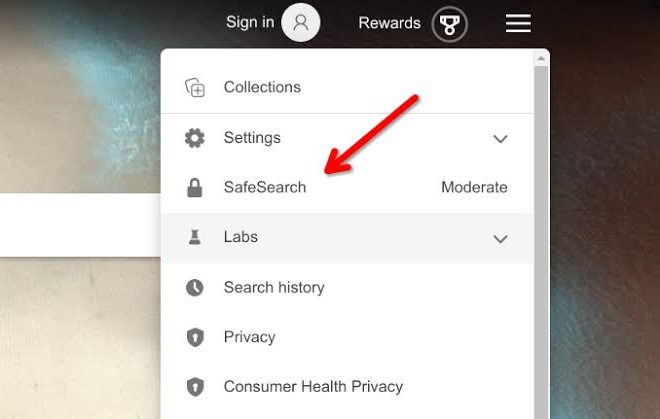
- Use SafeSearch lock under the child’s Google account settings — this applies SafeSearch across Google Search even when you’re not watching.
Both platforms’ category filters are imperfect — worth stating plainly. Niche sites in grey areas sometimes slip through; occasionally, educational content gets caught too. Check the blocked and allowed history every few weeks early on and adjust accordingly.
Quick check: Have you set a Screen Time or Family Link passcode that differs from the device unlock PIN? Without that separation, an older child who knows the PIN can disable everything you’ve just configured.
Teenagers: Why a Single Layer Always Fails
One blocking method is one point of failure. That age-based foundation works well for younger children precisely because they rarely think to test it. A motivated teenager — a normal, curious teenager, not a hacker — has several easy routes around any single control: a different browser, a friend’s hotspot, a VPN app, or resetting the device if they know the Apple ID password.
No technical control is foolproof against a determined teenager with physical access to the hardware. That’s just the reality. Layered controls raise the effort required and create natural conversation openings — the child asks why something is blocked, which is an opportunity, not a crisis.
The practical stack for ages 12–16:
- OS-level controls (Screen Time or Family Link) prevent app installs and obvious workarounds.
- DNS filtering at the router catches everything on the home network regardless of browser or app. NextDNS and CleanBrowsing both have free tiers with category-based blocking and per-device reporting. Configure them by changing the DNS server in your router’s WAN settings — your router’s manual will show you exactly where.
- Carrier parental controls on their mobile plan close the cellular gap. Every major carrier offers some version of this; search your carrier’s name plus “parental controls” for current setup instructions.
Quick check: Does your teenager know your Apple ID password or Google account password? That’s the master key to most of these controls. Keep it entirely separate from any password they know.
Blocking Websites on a Windows or Mac Computer

Shared family computers or laptops a child uses at a desk respond well to OS-level tools — no extra software needed.
Windows 11 (Microsoft Family Safety):
- Create a child account at account.microsoft.com/family — the child signs into Windows with this Microsoft account.
- In the Family Safety app or at family.microsoft.com, open the child’s profile.
- Under “Content filters,” turn on filtering and choose age-appropriate settings.
- Add specific blocked websites under “Blocked sites.”
- Enable “Only use allowed websites” for a strict whitelist rather than a blocklist.
- Review the weekly activity report emailed to you — it shows actual browsing, which is far more useful than setting-and-forgetting.
macOS Screen Time (System Settings → Screen Time):
The workflow mirrors iOS Screen Time. Enable it, set a separate Screen Time passcode, and configure Communication Limits and Content Restrictions under the child’s user account.
One caveat applies to both platforms: a child using an administrator account can potentially disable or work around these controls. Their user account should be standard and non-admin — you keep the admin credentials.
Quick check: Log into the child’s user account and try accessing a site you’ve blocked. Verify from their account specifically, not from yours.
Router-Level DNS Filtering: One Setting That Covers Every Device
There’s a single control point for everything connecting to your home Wi-Fi — phones, tablets, laptops, smart TVs, game consoles — and that’s DNS-level filtering at the router.
Here’s how it works: rather than your router using your ISP’s default DNS servers to resolve website addresses, it uses a filtering service that refuses to look up domains in blocked categories. The device never even reaches the site.
CleanBrowsing offers a free Family Filter address (185.228.168.168) that blocks adult content, proxy/VPN bypass sites, and mixed-content domains. Enter that DNS address in your router’s DNS settings. Their documentation at cleanbrowsing.org walks through setup steps for most common router brands.
NextDNS carries a free tier capped at 300,000 monthly queries, then light throttling; paid tier runs around $1.99/month. Per-device profiles, detailed query logs, and category controls make it more flexible than a blanket filter for households with different needs for different family members.
Cloudflare for Families (1.1.1.3) is free, requires no account, and means a single DNS address change — less granular, but zero cost and no ongoing maintenance.
To be fair, one trade-off deserves a mention: DNS filtering at the router is bypassable when a device manually sets its own DNS server, or when an app uses DNS-over-HTTPS to a different provider. For younger children this is rarely a practical concern. For technically capable teenagers, that gap is real — which is exactly why OS-level controls matter alongside it.
Quick check: After changing your router’s DNS, visit the test page on the filtering service’s website (most provide one) to confirm the filter is actually active. Don’t assume the change took effect.
Where Standard Advice Breaks Down: Common Mistakes and Edge Cases
Even with everything above in place, specific situations trip up parents who’ve done everything else right. These mistakes aren’t about skipping steps — they’re about setups that look complete but have gaps hiding inside them.
The school Chromebook that comes home. School-issued devices are enrolled in a Google Workspace for Education domain. Admin policies govern what’s blocked, and adding your own may conflict with or break school-required tools. Ask the IT department what content filtering is already active for home use — many schools apply conservative filtering that follows the device off-campus.
Cellular bypass. Router filtering does nothing here. Either carrier-level parental controls (contact your mobile provider directly) or device-level controls that follow the device regardless of network. Both iOS Screen Time and Family Link follow the device. Relying only on your router means this gap is probably the first one discovered.
Two children of very different ages sharing one device. Most platform controls apply per device, not per user. A shared iPad can’t have permissive settings for a 16-year-old and strict ones for a 10-year-old simultaneously. Cleanest fix: separate devices with separate Apple ID or Google accounts. Where that’s not possible, set controls for the younger child and give the older child more independence on a different device or the family computer under their own user account.
Staying overnight at someone else’s house. Home network controls don’t travel. Device-level controls — Screen Time and Family Link — do travel, but only when you’ve configured them before the visit. With no content filtering on the host’s Wi-Fi, those device controls become the primary line of defence. Confirm they’re active before the sleepover rather than after.
A VPN app appears. Both iOS Screen Time and Family Link can be configured to prevent VPN profiles from being installed or block VPN app downloads. In Screen Time, go to Content & Privacy Restrictions → VPN & Device Management and disallow changes. Family Link blocks installation of any app you haven’t approved. Remove any VPN app that’s already installed first — locking further installs without removing the existing one leaves it fully functional.
You’ve blocked a site the child says they need for school. This comes up constantly. Reflexively unblocking everything isn’t the answer; neither is refusing without checking. Ask to see the specific assignment or teacher instruction requiring the site. Legitimate? Add that domain to the allow list rather than widening the whole category.
The Gap Every Technical Solution Leaves
No filter blocks everything. New domains appear constantly, filters lag behind them, and a child who wants to find something will eventually find a gap. The research consensus — reflected in guidance from organisations like the Internet Watch Foundation and UK Safer Internet Centre — is that technical controls work best as a supporting layer, not a substitute for ongoing conversation about what children encounter online.
That’s not a reason to skip the technical setup. A seatbelt doesn’t prevent all accidents; it still matters. But a parent who installs filters and considers the job finished is relying on a foundation with known holes in it.
FAQ
Does Screen Time or Family Link work when the child has their own Apple ID or Google account?
Screen Time requires a Family Sharing setup where the child’s account is linked to yours as the organiser. Family Link runs through Google’s supervised account system for under-13s — but once a child turns 13, Google alerts them that they can remove supervision. At that point you’ll need to renegotiate the arrangement, not just technically but with the child directly.
Can a child factory reset the device to remove parental controls?
Activation Lock on iOS makes resetting without the Apple ID credentials very difficult. Family Link is designed to persist through factory resets in many Android configurations, but it’s worth testing on your specific device. The practical defence is keeping the Apple ID or Google account credentials well away from the child.
Do parental controls slow the internet down?
OS-level controls have no meaningful effect on speed. DNS filtering at the router adds a negligible lookup delay — imperceptible in practice. Third-party filtering apps that route traffic through a VPN tunnel can slow connections more noticeably; that’s the one worth watching.
What’s the simplest option for blocking one specific site?
Screen Time → Content & Privacy Restrictions → Content Restrictions → Web Content → Never Allow → add the domain. With Family Link on Android, Chrome’s site blocking is under the child’s profile in the Family Link app. On a home router, most have a “blocked sites” list in the admin panel’s parental controls section — no third-party service needed.
My child is 17 and I have no device controls set up. Is it too late?
For a 17-year-old, aggressive filtering is likely to damage trust more than it protects anything — the workarounds are well within reach at that age. A more realistic approach is router-level filtering for egregious content (which applies to all household devices equally, rather than singling them out), combined with an honest conversation about what you’re concerned about and why.